
-
Content
Last Updated on November 18, 2025
Are you a small business owner looking for a cost-effective way to set up and accept payments quickly? Are these mobile credit card readers ideal for your point of sale (POS) needs? Look no further. In this guide, we'll explore the benefits of pairing your Android device with a card reader, how it can benefit your business, and the simple steps to get started.
What is an Android credit card reader?
An Android credit card reader is a small payment solution that lets you accept card and digital wallet payments using an Android phone or tablet. In simple terms, your Android device runs a POS payment app, and either a Bluetooth card reader or your phone’s built-in NFC handles the actual tap, chip, or swipe.
There are two types of Android credit card readers:
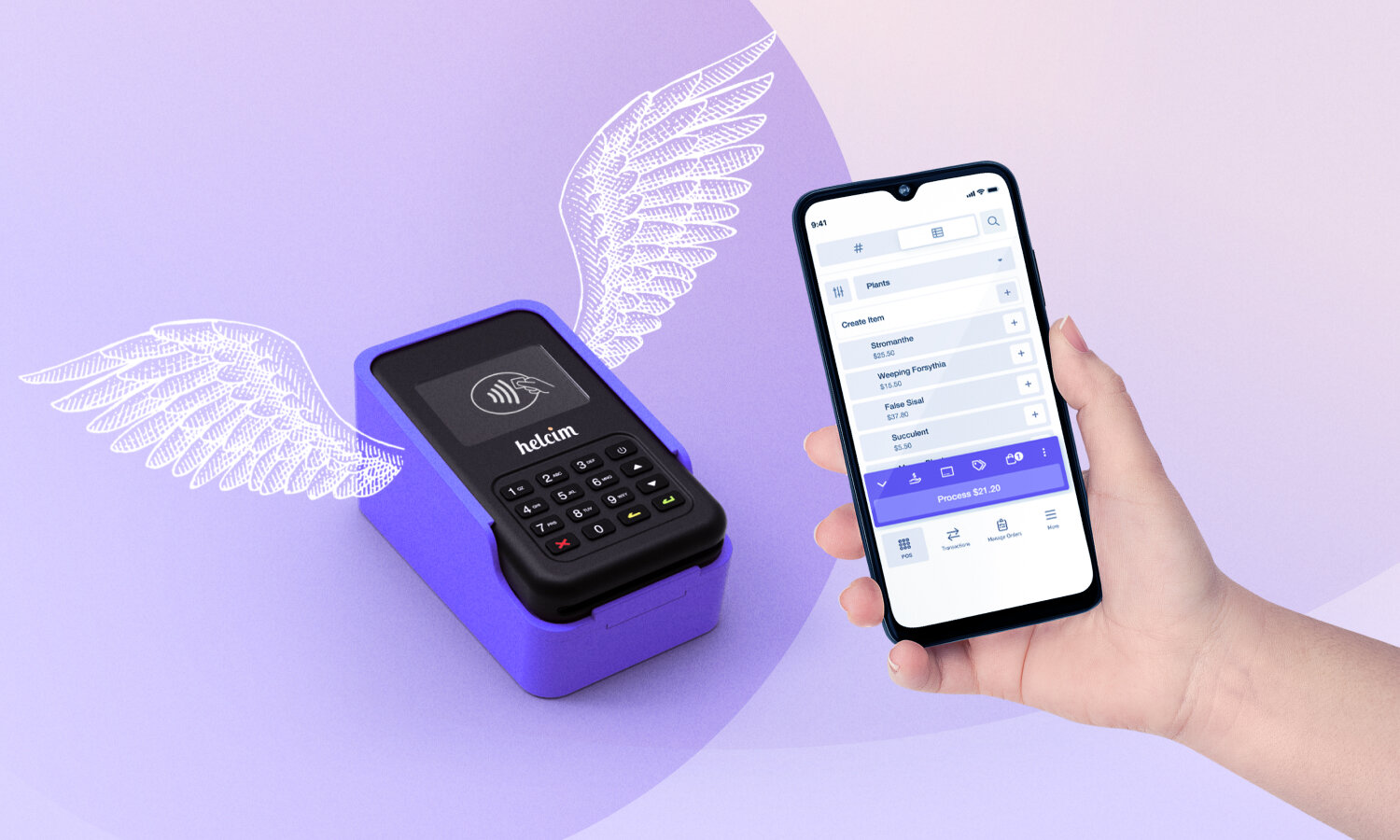
- Credit card reader paired with an Android device: You pair a credit card reader to your Android phone or Android tablet using Bluetooth (or sometimes USB). The credit card reader takes chip , digital wallet, swipe, and contactless (tap) payments. At the same time, the POS app on your Android transmits the transaction data to the payment network for payment processing.
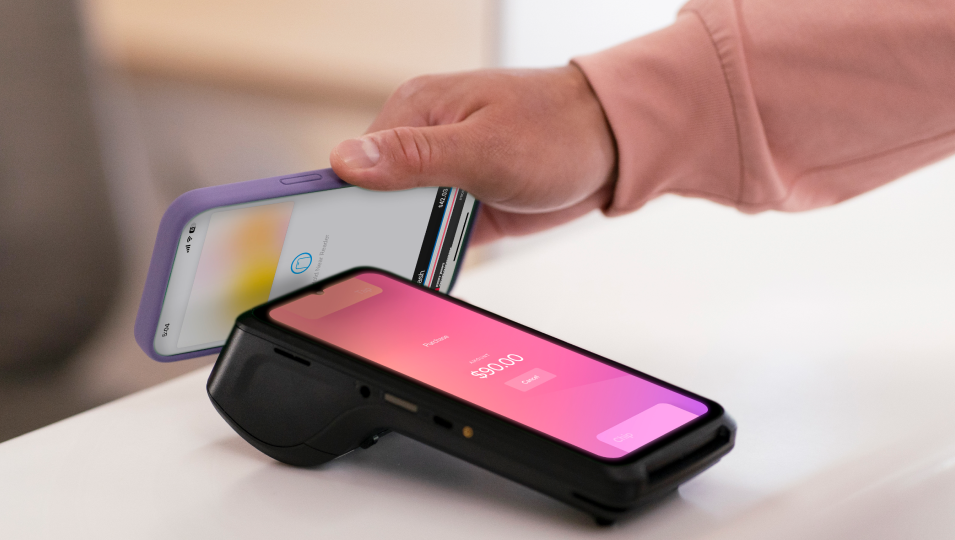
- Tap to Pay on Android (no extra hardware): If your Android phone has an NFC payment processing function, you can turn it into a card reader. Customers simply tap their contactless card or mobile wallet (like Google Pay) on the back of your phone. The POS app will take the transaction data and transmit it to the payment network for payment processing. This is ideal if you want the lightest, most portable setup possible.
With an Android credit card reader, a mobile business can turn their Android device into a cash register, payment terminal, and basic business hub all in one.
What are the pros and cons of an Android credit card reader?
An Android credit card reader gives you a lot of flexibility for a relatively low cost, but it also comes with trade-offs around reliability, battery life, and how much you depend on your own device.
1. What are the main advantages of an Android credit card reader?
The biggest advantage is that you don’t need to buy a full setup with POS equipment and other accessories. If you already have an Android phone or tablet, you can add a small Bluetooth reader or use Tap to Pay on Android to instantly turn it into a card reader.
You’re not tied to a counter or a wired network. As long as you have Wi-Fi or mobile data, you can accept payments at a client’s home, on-site at a job, at a market booth, or from a food truck.
2. What are the disadvantages of an Android credit card reader?
Your business depends on your phone or tablet. If your phone battery dies, your Android credit card reader dies. If you drop or lose your phone, your Android card reader is gone too until you log in on another device. So, make sure to keep your device fully charged or have a backup device so your business isn’t interrupted.
Most Android credit card readers need an internet connection to authorize payments. Weak mobile data or Wi-Fi can slow down checkout or cause failed transactions. Learn more about WiFi vs Mobile Data POS connection.
Some providers offer offline mode as a backup, but the transactions are only processed once the device reconnects. This means you won’t know if a transaction is declined until you’re back online.
Which Android models work with credit card readers?
The POS app is the heart of any Android credit card reader setup. The Android models that work with a card reader depend on the requirements of the provider’s POS app. For example, the Helcim Android POS app requires Android 10.0 or higher. This means any Android device released in 2020 or later should work with most card readers. Many phones released between 2017 and 2019 were also updated to Android 10, so devices like the Google Pixel (1st gen and newer), Samsung Galaxy S9/S9+ and Note9, or the OnePlus 5/5T can still work with credit card readers.
How do you check if your Android device works with credit card readers?
- Open Settings
- Scroll to About phone or About tablet (sometimes under System).
- Look for the Android version: If it shows Android 10, 11, or higher, your device can work with most card readers.
Android 10 is the minimum requirement for many Android credit card readers, but it no longer receives OS security patches. To better protect your business information and customer data, it’s safer to use a device running Android 11 or higher.
If you want to use Tap to Pay on Android to accept contactless payments without an external reader, your device also needs an NFC chip and Google Play services. Tap to Pay solutions rely on these components and device security to safely read contactless cards and digital wallets.
What payment types can you accept on an Android credit card reader?
With an Android credit card reader, you can accept EMV chip, swipe, and tap credit/debit cards, and digital wallet payments like Google Pay. Depending on your payment provider, your Android POS app also includes online payment tools to process card-not-present payments like online invoices, keyed-in payments, payment links, or MOTO payments.
Let’s explore each payment type that Android credit card readers support in more detail:
- Chip (EMV) payments: Customers insert their card and complete the transaction with a PIN or signature.
- Contactless (NFC) payments: Customers tap their NFC credit and debit cards on the credit card readers or their Android phones to make the payments.
- Magstripe card swipes: The customers swipe their debit or credit cards on the credit card readers to make the payments.
- Digital wallet payments (Google Pay or Samsung Pay): Instead of bringing the physical debit or credit cards, customers store their card information on the digital wallet app like Google Wallet or Samsung Wallet. At checkout, with the installed Google Pay or Samsung Pay app, the customers tap their phone or smart watch on the credit card reader or the merchant’s Android phone (Tap to Pay on Android) to make the payment.
- Key in card transactions: Most Android POS apps offer a Virtual Terminal that lets you key in debit and credit details manually when the card isn’t physically present or you accept payments over the phone or by mail (MOTO payments).
How much do Android credit card readers cost?
Most businesses can get started with an Android credit card reader for somewhere between USD $29–$150 or CAD $41–$190 upfront. If you use Tap to Pay on Android, then the hardware cost is $0. On top of that, you’ll pay transaction fees on each sale from 1.83% to 2.9%, and some providers charge monthly software fees from $0 to $125 per month or more. Other payment accessories, such as receipt printers or barcode scanners, can cost at least $149 (or CAD $210).
Let’s break down what that actually looks like.
1. Android card reader devices cost
If your payment provider supports Tap to Pay on Android, you can accept contactless cards and digital wallet payments directly on your NFC phone. The trade-off is that you’re limited to tap payments only (no chip insert or swipe payments).
If you want to satisfy all your customers’ preferences, then basic Bluetooth Android card readers will work. These portable credit card readers connect to your Android phone or tablet over Bluetooth and let you take all in-person payment types anywhere.
Below is a cost comparison of different credit card readers from different merchant service providers.
| Provider | USD pricing | CAD pricing |
|---|---|---|
| Helcim | Helcim Credit Card Reader: $99 | Helcim Credit Card Reader: CA$129 |
| Square | Square Reader: $59 | Square Reader: CA$69 |
| Stripe | Stripe Reader M2: $59 | BBPOS WisePad 3: CA$79 |
| PayPal (Zettle) | PayPal Card Reader: $29 | Unavailable |
| Clover | Clover Go: $199 | Not listed |
| Shopify | Tap & Chip Card Reader: $49 | WisePad 3 Card Reader: CA$69 |
| Authorize.net | Card Reader: $135 | Card Reader: CA$135 |
With Helcim, you can pair your Android device with the Helcim Card Reader, which is a one-time purchase of $99 USD or $129 CAD. The Helcim POS app is free, so you can set up your business and start accepting payments with no extra fees.
2. Android credit card reader payment processing fees
Regardless of which type of Android credit card reader you choose, you can’t ignore the debit and credit card processing fees you pay on every transaction. Merchant service providers usually use two types of pricing methods: flat-rate pricing and the interchange-plus pricing model.

Many providers keep it simple with a single rate. For example, Authorize.net charges 2.9% + 30¢ per in-person credit card transaction. Some providers, like Square, charge different fees depending on the tier of your POS app subscription. For example, 2.6% + 15¢ for the Square Free plan, 2.5% + 15¢ for the Square Plus plan, and 2.5% + 10¢ for the Services Growth plan.
In contrast, Helcim uses an interchange-plus model that passes through the actual interchange fee set by the card network and adds a small, transparent markup on top. It usually looks like Interchange + 0.40% + 8¢. The fees vary for every transaction depending on the customer’s card used at checkout. On average, Helcim’s merchants pay 1.83% + 8¢ (in the U.S.) or 1.67% + 8¢ (in Canada) per transaction.
Below is a comparison of payment processing fees for Android credit card readers offered by popular merchant service providers.
| Provider | US processing fees | Canada processing fees |
|---|---|---|
| Helcim | Interchange + 0.40% + 8¢ Average: 1.83% + 8¢ | Interchange + 0.40% + 8¢ Average: 1.67% + 8¢ |
| Square | 2.6% + 15¢ (Square Free) 2.5% + 15¢ (Square Plus) 2.4% + 15¢ (Square Premium) | 2.5% |
| Stripe | 2.7% + 5¢ | 2.7% + 5¢ |
| Clover | 2.5% + 10¢ (Starter plan) 2.6% + 10¢ (Essentials) 2.5% + 10¢ (Services Growth) | Not publicly listed. |
| Paypal | 2.29% + 9¢ | Unavailable |
| Shopify | 2.6% + 10¢ (Basic plan) 2.5% + 10¢ (Grow plan) 2.4% + 10¢ (Advanced plan) | 2.6% + 10¢ (Basic plan) 2.5% + 10¢ (Grow plan) 2.4% + 10¢ (Advanced plan) |
| Authorize.net | 2.9% + 30¢ | 2.9% + 30¢ |
3. Android credit card reader monthly POS app fees
Monthly POS app fees depend on how much you want your system to do. The POS app on your Android device isn’t just a way to take payments. It’s usually a simplified mobile version of a larger POS software/platform where you also manage inventory, staff, customers, and reporting from a desktop or laptop. So, when you choose the Android POS app, you also have to think about the functionality that the POS providers have overall.
Below is the detailed comparison of POS software monthly fees for Android credit card readers from different providers:
| Provider | Monthly fee (USD) | Monthly fee (CAD) |
|---|---|---|
| Helcim | $0 | $0 |
| Square | $0 – $149 | $0 – $35+ |
| Stripe | $0 | $0 |
| Clover | $40/mo for 36 months or $749 (Starter) $70/mo for 36 months or $749 + $29.95/mo (Essentials) $125/mo for 36 months or $749 + $84.95/mo (Services Growth) | Not listed |
| Paypal | $0 – $30 | $0 – $35+ |
| Shopify | $39 – $399/mo (Basic – Advanced) $2,300/mo on 3-year term (Plus) $89/mo per location (POS Pro) | $49 – $517/mo (Basic – Advanced) $2,300/mo on 3-year term (Plus) $119/mo per location (POS Pro) |
| Authorize.net | $25 | $25 |
Helcim lets you run its POS app on your Android device with no monthly software fee. On top of basic in-person payment processing, you also get online payment tools, Tap to Pay on Android, inventory tracking, customer management, reporting, and other core operational features included.
If you need more advanced tools, such as deeper analytics and SQL-based reporting, project or job management, or detailed staff scheduling, then a paid POS plan from another provider might be a better fit. But it is important to watch for functionality overlap between your business management software and POS software. If a paid plan includes features your existing business software already covers (like accounting, CRM, or staff scheduling), there’s no reason to pay twice for the same thing.
Many Android POS apps and software offer integration options so you can connect your POS system to your existing business software. You can also use the payment API to connect the two systems directly and customize the payment experience to match your business needs.
4. Other Android credit card reader costs and fees
Beyond the obvious hardware costs, processing fees, and Android POS app/software monthly fees, there are a few extra costs and fees you need to be aware of:
- POS accessories: Receipt printers typically cost USD $295–$305 (or CAD $410–$425), while barcode scanners range from USD $149–$399 (or CAD $210–$560). Before purchasing any accessory, check your merchant service provider’s compatibility list to ensure the accessory you’re buying works with your POS app and credit card reader.
- Credit card chargeback fees: Many merchant service providers charge a credit card chargeback fee from $15 to $30 if a customer charges back a credit card transaction. Most providers won’t refund this fee, but Helcim refunds it if you successfully counter the chargeback by proving the transaction is legitimate.
- Other hidden fees in the contract: Some providers still include things like PCI non-compliance fees, monthly statement fees, inactive fees, or early contract termination penalties. So make sure you read the contract and terms and conditions carefully before signing. Read more about hidden payment fees to avoid.
How to use a credit card reader on an Android phone
Here’s the short version of how to use a credit card reader with your Android phone:
- Check that your Android device and card reader meet the app’s requirements.
- Create a merchant account and install the Android POS app.
- Connect the card reader to your phone (or turn on Tap to Pay on Android).
- Set up your catalog, taxes, and basic settings.
- Run a small test payment.
- Start taking real payments from customers.
Now let’s walk through each step in more detail.
Step 1: Check your Android device and app requirements
For Android credit card readers to work, you need to make sure your phone can actually run the POS app. Visit your phone settings and confirm if its OS model is Android 10 or higher. If you want to use Tap to Pay on Android, make sure your phone has NFC and Google Play services enabled.
Step 2: Create your merchant account
Next, you should choose a provider with no contract so that you can experience their platform without any strings attached. After choosing, apply for a merchant account by providing your business information. It will take 1 to a few days for your application to be approved.

Step 3: Install the Android POS app
Once your merchant account is qualified, you can install the POS app on your Android device. Go to the Google Play Store, search for the provider’s POS app, such as the Helcim Android POS app, and install it on your Android phone or tablet. Make sure your device has enough storage to download the app. Log in with the same account you used during signup.
Step 4: Set up your business, products, taxes, and tips
Before you take your first real payment, make sure to set up your account. You can do this step on your desktop as it has a bigger interface and complete options. This step includes linking your business bank account, adding your products or services with names and prices, setting sales tax or GST/HST rules based on your location, and turning on tip options (15%, 18%, 20% or custom).
Step 5: Connect your Android device to the card reader (or enable Tap to Pay)
Now it’s time to connect the hardware or turn your phone into the hardware.
If you’re using a Bluetooth card reader, you need to turn on Bluetooth on your Android device. Then, power on the card reader and go to the POS app’s settings to complete the pairing steps.
If you’re using Tap to Pay on Android, in the POS app, look for a setting like “Enable Tap to Pay on Android”. The app will guide you through checking NFC, security, and permissions. After it’s turned on, your phone itself becomes the credit card reader for contactless cards and wallets.
Step 6: Run a test transaction
Before you take your Android POS app to a busy market, it’s smart to run a few test payments. Helcim actually waives fees on your first $5 of test transactions. Try charging $1 on your own credit card, for instance. This will let you see the flow from start to finish.
Step 7: Processing your first payment
When you’re ready to process a real transaction, start by entering the purchase amount, selecting the products, or scanning their SKUs using your connected barcode scanner. The Android POS app will automatically compile everything into a cart total. Once you’ve reviewed the details and everything looks correct, tap Charge. Your card reader will display a prompt such as “Tap, Insert, or Swipe.” Pass the reader to the customer so they can finish the payment using their card.
Step 8: Send receipts via email or text
Once the customer completes their payment, you’ll be able to choose how you want to provide their receipt. You can send it by email, text message, or select “No Receipt” if they don’t need one. If your Android card reader is paired with a receipt printer, you may also see an option to print a paper receipt.
What types of businesses need an Android card reader?
Numerous businesses can benefit from using an Android credit card reader, including:
- Retail Stores: Even if you have a physical location, you might still prefer the flexibility of an Android credit card reader. Your staff can carry a small item around the store to line-bust or check out customers on the floor.
- Market vendors, pop-ups, and food trucks: If your business moves between markets, fairs, festivals, or processes payments in a food truck, an Android card reader keeps you flexible. Just make sure you have Wi-Fi or a hotspot.
- Restaurants: Servers can plug in orders and review totals right from their Android device while punching in totals for on-the-spot payments, reducing wait times.
- Events: Trade shows and events are ideal for on-the-go payment solutions, eliminating heavy POS equipment and reducing the number of POS devices you need to lug around with you.
- Personal trainers: Stay flexible by accepting payments wherever you offer your services. You can even send invoices or punch in credit card details through your phone, so you don't need to bring a credit card reader with you.
- Home services: Gardeners, painters, and other home-based service providers can accept payments on the spot, send invoices, or set up a recurring payment for your monthly pool cleaning fee, for example.
These examples are just a few specific examples of the types of businesses and industries that can benefit from the mobility of pairing your phone with a card terminal or using it on its own to access your payment provider's POS software.
Save 25% transaction fees with Helcim
With Helcim interchange-plus pricing, thousands of merchants have reduced their transaction fees by ~25%.
Interested in switching to Helcim but feel stuck with your current provider? Helcim's Merchant Buyout Program makes the transition smooth and hassle-free. Here’s what you can expect:
- Personalized support to migrate your data
- We’ll waive up to $500 in processing fees to cover your cancellation costs including early termination fees or equipment leases.
- Enjoy better service, lower fees, and free payment tools.
Break up with your provider and switch to Helcim today!

Break up with bad rates.
Feeling stuck with your provider? We'll waive $500 of your processing fees when you switch to Helcim.
FAQ
Can I use my Android as a card reader?
Yes, you can use your Android phone as a card reader if its OS model is Android 10 or higher, so that you can install the POS app. With the POS app, you can either connect it with the credit card reader or use the Tap to Pay on Android feature (if your phone has an NFC chip).
Do I need special software for an Android card reader?
Yes, you’ll need to install a compatible POS or payment app from your provider. This app handles transactions, connects your Android device to your card reader, and manages things like inventory, taxes, and receipts.
How do you accept credit card payments on Android?
Download your provider’s POS app and pair your Android device with a Bluetooth card reader or enable Tap to Pay on Android. Then you can accept credit card payments through a connected card reader or directly through your phone with Tap to Pay on Android.
Does Android have a built-in NFC reader?
Most modern Android phones do include an NFC chip, which allows you to use the Tap to Pay on Android feature and accept contactless payments directly from your phone. You can check by going to Settings > connections > tap NFC and contactless payments > tap the switch to turn NFC on.
Can you key in card details on an Android credit card reader?
Your Android POS app must include a Virtual Terminal to let you manually key in card details for phone orders or situations where the customer isn’t present.
Do you have to pay monthly Android POS software fees?
It depends on the provider. Some providers like Helcim offer free Android POS apps with no monthly fee, while others like Shopify or Clover charge for their POS app.
Related Articles
-
The ultimate guide on mobile payment app for small businesses
May Montenegro | October 7, 2025
-
What is the best portable POS system for small business?
Robert Luong | March 24, 2025
-
The best mobile pos systems for small businesses
Feyi Oladipo | March 11, 2025
-

How to accept mobile payments: A complete guide for small businesses
Feyi Oladipo | September 26, 2024
-

iPhone Credit Card Reader: Take Payments On-the-Go
Robert Luong | August 30, 2023